There are two ways to add staff members, either one at a time or via a CSV, which allows you to create multiple staff records.
Adding one at a time
Navigate to Admin > Staff and click on Add New User.
For staff requiring access to the system, the Email field must be entered along with User Type and 'Allow Login' ticked. Without these fields, the record cannot be created. Ensure you have selected the appropriate User Type for the new staff member as this determines what they can access within the system (this access can be changed once the record has been created)
When adding staff records which do not require system access, select 'NONE' from the User Type field and leave the 'Allow Login' tick blank. When creating such records, the Email field is not mandatory.
Select 'Create new user/staff member' to create the record. Further staff details can be added from the Edit tab in a staff profile - see Pupil Asset: How to Edit Staff for more details
Adding multiple staff users via a csv. import
To mass import users into Pupil Asset, the following fields must be contained and completed in the file:

- First Name
- Surname
- Title
- E-mail (default)
- Username (school email address recommended)
- Teacher Type (T=teacher, TA=TA, HLTA=High Level TA)
- User Access Level (please note this field must be capitalised)
When all fields are complete, save the CSV file and navigate to Admin > Import.
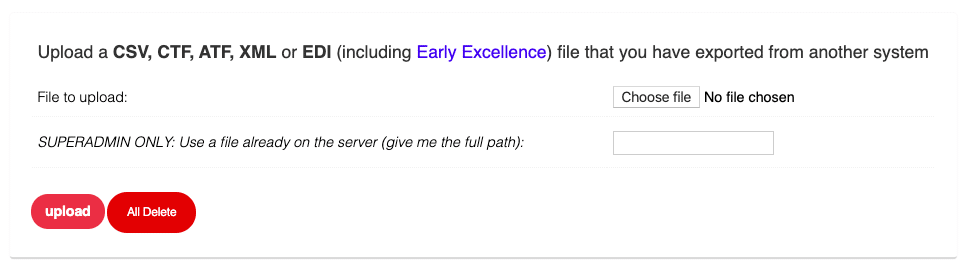
Click Choose File and then locate the file to be uploaded.
Click Continue.
At the top of the next page, choose STAFF from the What are you importing? section.
Select This row says what the data is for the column headers and select This row is data for the data columns.
Click Next.
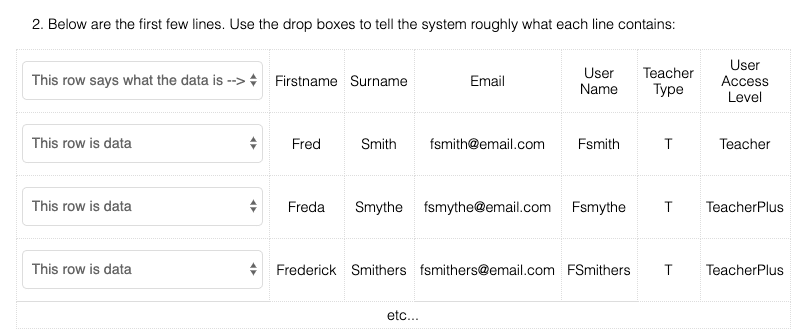
Match the columns with the drop down options.
Click Next to import all the staff members.
Logging in for new users
Once staff members have been added to the system, they will need to use the First time logging in? link on the Login page:https://secure.pupilasset.com/login.php
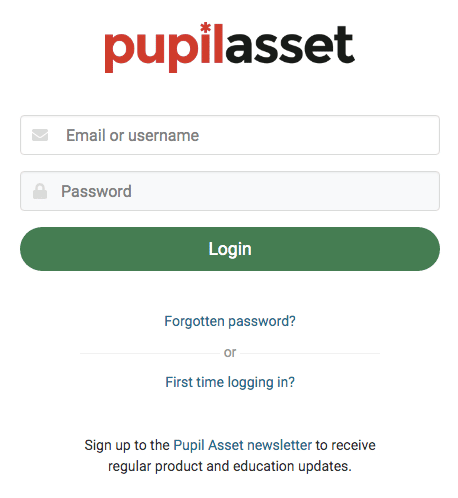
They will then need to enter their username which will prompt an email with instructions on how to generate a password.
Updated