It is recommended that class teachers complete the daily register from their dashboard. For more information on this refer to Pupil Asset: How do Teachers take a class register?
Identifying those pupils that were not marked as present when the teacher completed their electronic register
Once the register has closed, the office staff need to find out which pupils, if any, are not marked as present at registration – the ‘N’ codes. To do this, navigate to the Dashboard, open the Roll Call widget and hover over any of the green registered classes.
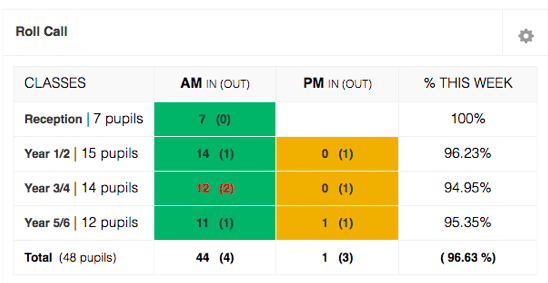
This will automatically take you to Admin > Registration > Absent & Late where a list of any pupils with an ‘N’ code, for that day, will be shown. Pupils’ attendance code can be amended directly from this screen.
Other options include showing contact details, texting all remaining ‘N’ codes and viewing other attendance codes such as Ill; Absent (not ill); Late and Unregistered (missing marks).
How do office staff record pupil attendance if electronic class registers are not being used?
The Registers page (Office > Registration > Registers) is designed for schools that do not use electronic registration and allows office users to manually add pupil attendance, print a blank class register and view class herringbones and attendance codes.
Some of the key features within the Registers option include:
Easy to see
The registers are easy to see and enable you to use our smart colour-based system to easily spot patterns and warning signs for poor attendance. Easily locate marks with notes against them using our white corners, and click to change the mark or view the history of changes on that mark.
Smart click and drag functionality
Want to copy a register code (and note) across to other dates, or even to other pupils? Simply click on the square you wish to copy and drag it across. Added some illness or holiday in the future that you don’t wish to overwrite? Click on a blank cell, and you can drag over the previously marked codes without disturbing them. Simple but intuitive.
Your flexible friend
Refine your settings via the Pupil List filter to create lists of pupils under/over/at a certain percentage of attendance. You can also mix and match which codes you want to see, then request thresholds to show pupils with more or less. Show in groups of class or year, or even group the whole school together.
Updated