Overview
This article explains how to delete a staff member's contract.
Instructions
Staff contracts can be deleted from an individual staff member's record or the Staff Contracts list, where all employee contracts are displayed. Choose an option below based on where you want to delete the contract from in the MIS:
- Follow these steps to open the staff record and delete a contract (if the record is already open, start at Step 5):
- Select Staff.
- Select All Staff.
- Locate the staff member whose contract you want to delete (use the Search bar and filters as appropriate to speed up your search).
- Select the staff member's name to open their record.
- Select Contracts.
- Locate the contract that you want to delete.
- Select the Contract Number (#) for the contract you want to delete:
- From the open contract, select Delete:
- When prompted, select Confirm to continue with the deletion of the contract:
- Follow these steps to locate and delete a member of staff's contract from a list of all Staff Contracts:
- Select Staff.
- Select Contracts.
- Locate the contract that you want to delete (use the Search bar and filters as appropriate to speed up your search).
- Select the Contract Number (#) for the contract you want to delete:
- From the open contract, select Delete:
- When prompted, select Confirm to continue with the deletion of the contract:
Outcome
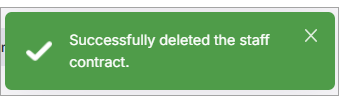
The contract is deleted, and a confirmation message is shown. The Contract tab in the employee's Staff record is displayed with a message confirming the successful deletion of the contract:
Related information
- MIS: How do I view a list of all staff contracts?
- MIS: How do I add a staff contract?
- MIS: How do I edit a staff contract?
Updated