Refunds can be issued in Stripe but a corresponding refund will also need to be issued in PA
Refunding a charge via the Stripe Dashboard
-
Find the Charge:
- Go to the payments overview page.
- Or, visit the Dashboard page for the specific charge.
- Click 'Refund' to choose full or partial refund and provide a reason.
-
Initiate Refund:
- Click the '...' icon next to the charge.
-
Select Refund:
- Choose "Refund charge" from the menu.
-
Choose Refund Type:
- By default, a full refund is issued.
- For a partial refund, enter a different amount.
-
Provide Reason:
- Pick a reason for the refund.
- If "Other" is chosen, explain the reason briefly.
-
Confirm Refund:
- Click "Refund" to proceed.
-
Refund Processing:
- Stripe will process the refund request immediately.
- Allow 5 to 10 days for the refund to appear in the bank account.
-
Update Credit:
- After issuing the refund, update the credit in Pupil Asset using the refund section.
Adding Refund in PA
The first step is to refund the amount in the individual pupil’s profile, on their Payments > Payments In page, by using the Cash Refund button at the top of the page. This will open a popup where you can enter your refund details.
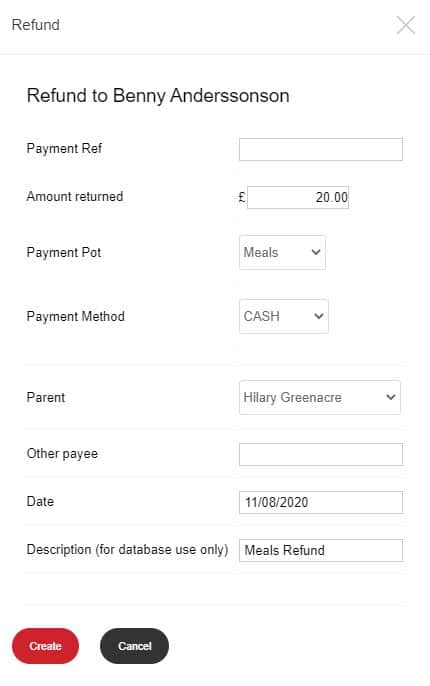
Here you can enter details regarding your refund and assign it to a family contact that is linked to the pupil. The refund will also be visible in the individual pupil’s Payments page
Updated